


Many iPhone users rely on security features to protect their devices and personal data. One of the most useful tools Apple provides is Find My iPhone. This feature helps locate a lost phone and protects it from unauthorized access. However, there are times when users need to turn it off. If you plan to sell your phone, give it to someone else, send it for repair, or reset the device, you must know how to turn off Find My iPhone properly. Turning it off is not difficult, but the steps must be followed carefully. Once the feature is disabled, the device can be restored or transferred without problems. This guide explains the process clearly so anyone can complete it without confusion.
What Find My iPhone Does
Find My iPhone is designed to help users track their devices if they are lost or stolen. It connects the phone to your Apple ID and allows you to locate it on a map. You can also lock the phone or remotely erase its data if needed. This feature protects personal information and prevents unauthorized users from activating the device. Because of this security system, Apple requires users to turn off the feature before transferring ownership. If Find My iPhone remains active, the device stays linked to the original Apple ID, and a new user cannot fully set it up. Understanding this role makes it clear why turning off the feature is sometimes necessary.
Why You May Need to Turn Off Find My iPhone
There are several situations where users need to learn how to turn off Find My iPhone. The most common reason is selling or giving the phone to another person. If Find My iPhone stays enabled, the next user may face problems setting up and using the device properly.
Another reason is factory resetting the phone. Many repair centers also request that Find My iPhone be disabled before they begin work on a device. Some users temporarily turn it off while troubleshooting software issues or changing their Apple ID accounts. No matter the reason, the process should always be completed correctly to avoid activation problems later.
Things You Need Before Turning It Off
Before starting the process, make sure you have the correct Apple ID and password. Apple requires this information to confirm that you are the rightful owner of the device. Without the password, Find My iPhone cannot be turned off. You should also make sure your device is connected to the internet through WiFi or mobile data. A stable connection ensures the changes sync with your Apple account. It is also a good idea to back up your data before making any changes, especially if you plan to reset the phone afterward. Preparation makes the process smooth and prevents delays.
Steps to Disable Find My iPhone Using Settings.
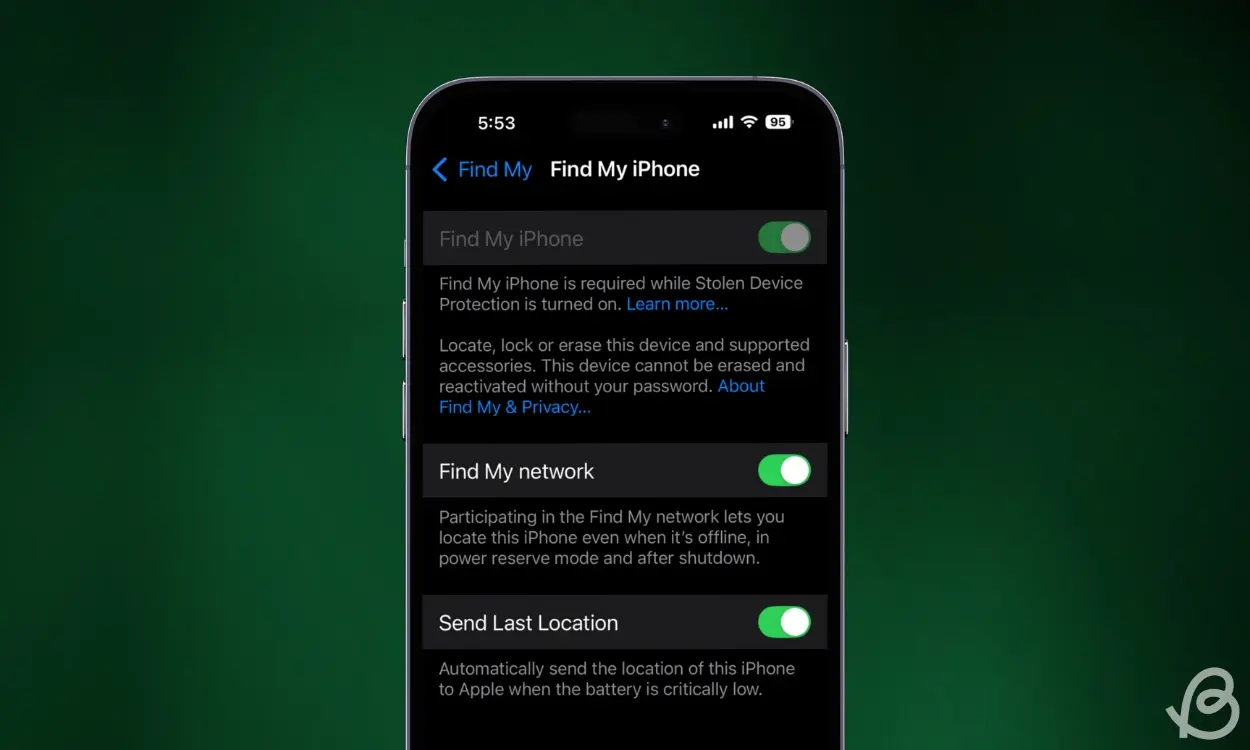
The easies..t way to turn off Find My iPhone is through the device settings. This method works when you have direct access to the phone. Start by opening the Settings app on your iPhone. At the top of the screen, tap your name to open the Apple ID section. Inside this menu, select Find My. Then tap Find My iPhone to open the feature settings. A toggle button labeled Find My iPhone will appear on the screen.
Turn the switch off, then enter your Apple ID password when prompted. After confirming the password, the feature will be disabled. Once completed, the phone will no longer be linked through Find My iPhone, and you can proceed with resetting or transferring the device.
How to Turn Off Find My iPhone Using iCloud
Sometimes users cannot access the phone directly. In this case, another way to turn off Find My iPhone is through the iCloud website. Start by opening a browser on a computer or another mobile device. Sign in to your Apple account using your Apple ID and password. After signing in, open the Find Devices section. You will see all the devices that are linked to your Apple account.
Select the iPhone you want to remove. Choose the option to remove the device from your account. Once the device is removed, Find My iPhone will no longer be active for that phone. This method is useful if the phone is no longer with you or is not working.
How to Turn Off Find My iPhone Before Resetting
If you plan to reset your device, you must first understand how to turn off Find My iPhone correctly. Resetting a phone without turning off this feature can create activation problems later. Before starting the reset process, go to Settings and turn off Find My iPhone using your Apple ID password. After that, sign out of your Apple ID account. Once these steps are complete, you can safely reset the device. This ensures the next user can set up the phone without issues.
Common Problems When Turning Off Find My iPhone
Some users encounter minor issues when trying to turn off the turn-off. The most common issue is entering the wrong Apple ID password. If the password is forgotten, it must be reset before continuing. Another problem happens when the device has no internet connection. Without a connection, the request to turn off the feature cannot be verified. In some cases, users try to turn off.
What Happens After Turning Off Find My iPhone
After learning how to turn off Find My iPhone and completing the steps, the device will no longer be tracked through your Apple account. The activation lock will be removed, and the phone can be reset or transferred to another user. You will not be able to locate the phone using Find My once it is disabled. This is why it is important to turn the feature off only when necessary. If you plan to keep the device, you can always turn the feature back on later through the settings menu.
Final Thoughts
Understanding how to turn off Find My iPhone is important for every iPhone user. The process is simple, but it must be done carefully to avoid problems. Whether you are selling your phone, resetting it, or sending it for repair, turning off Find My iPhone ensures everything works smoothly. By following the correct steps and keeping your Apple ID details ready, you can turn off the turn off in just a few minutes and complete your task without stress.
READ MORE: selftimes
